Getting used to Linux
Having performed the procedures presented in the previous section correctly, the embedded computer will operate with a Linux operating system very similar to what we are used to on regular computers. Therefore, we can perform some simple procedures so that we can explore and get a little used to the environment in which we will work. What will be demonstrated in this step are standard procedures, commands and information for Linux systems running on the Gumstix Overo WaterStorm embedded computer.
Tip
If the reader is already used to the Linux desktop, it is recommended to skip to the next section.
Command Lines
We will begin the process of setting featuring basic command lines that will help you use the operating system without major problems. It is worth mentioning that there is no need for any special knowledge to use Linux commands, since the terminal is a program like any other.
Tip
For more details on any commands listed here, simply execute the command followed by --help or preceded by man.
The--helpcommand prints a brief description of the commands followed by instructions for use, for example:
uname --help
To reduce the amount of printed content can use less, for example:
ls --help | less
While the man command displays the instruction manual for the requested command, for example:
man cd
The main commands are simple, the arrows for up and down go up and down the page, respectively, as well as the arrow keys for left and right make the movement for reading the texts, the Enter also makes the page go down. The “h” key shows the help of the man command, showing all the keys and shortcuts used. And the “q” key leaves the manual navigation.
1. cat comand
cat [OPTION] [FILE]
Its name is a derivation of the word concatenate and allows you to create, merge and display files in standard screen format or in another file, among other things.
If the option is not specified, the cat command reads the content present in the indicated file and prints it on the screen. For example, when executing the command cat/etc/issue in the Overo terminal, the branch and the version of the operating system used are printed.

Note
If you want to know more features, access Comand Cat Linux - man7.org.
2. uname comand
uname [OPTION]
The command uname, a name derived from the term “Unix Name”, displays detailed information about your Linux system, such as the name of the machine, the operating system, the kernel and so on.
For example, the option -a prompts you to print all the information available by the program.

3. echo comand
echo [OPTION] [STRING]
The echo command is a command used to display messages on the screen or in a file. When using the command followed by a string, the text of the string is printed on the terminal screen. For example:
root@overo:~# echo "Aerolab"
Aerolab
root@overo:~# echo Aerolab
Aerolab
4. clear comand
clear [OPTION]
Use the clear command to clear the contents of your terminal screen. The command doesn’t require parameters, it uses variables from the current desktop to determine how to clear the screen.

5. pwd comand
pwd [OPTION]
The pwd command is used to find the path to the current directory (folder) where you are. The command will return a full path, which is basically a path that begins with a forward slash (/). For example:
root@overo:~# pwd
/home/root
6. ls comand
ls [OPTION] [FILE]
Its name derives from the first consonants of the English word “list”. The ls command is used to list content within a directory. By default, this command will show only the contents of the current directory where you are.
By using the command ls without specifying any options or directory, the terminal will print the contents of the current directory. However, if you want to see the contents of other directories, type ls, and then the path to the directory. For example, type ls/home/username/Documents to see the contents of Documents.
A useful option of the ls command is the ls -la option which, in addition to listing all files and folders in the current directory, also prints some useful information about each one.

The figure shows an example of the output of the command ls -la, in it we can see that for each file a line with several columns of information is printed. Explaining what each column means is unnecessary, however it is important to know what the first letters mean, as this is often the cause of some problems.
The first 10 columns that are composed of “-” and varied letters indicate the file type and the users’ permissions for those files. In the figure, the first column, which is always indicated by the letter “d”, showing that the file is a directory, if the file was a program or a regular text file it would be indicated by a “-“. The next nine letters can be separated into groups of 3 indicating the permissions of the owner, group and others, respectively. The letters “r”, “w” and “x” indicate reading, writing and execution, respectively. Therefore, if we analyze the data in the “usr” folder, we will see that the owner of the folder has permission to read, write and execute, but his group and other users will only be allowed to read and execute.
7. cd comand
cd [OPTION] [DIRECTORY]
Its name is an acronym of the English expression “change directory” and its purpose is, as your name suggests, to change from the current working directory, the directory you are in, to another directory. For example, if you are in /home/user and want to go to Documents, a user subdirectory, just type cd Documents.

In addition, there are some shortcuts that can be used to navigate quickly. Some of them are:
cd ..   # (with two points in a row) move to a directory above (previous).

cd      # moves directly to the home folder.

cd-     # (with a hyphen) moves to previous directories.
Note
The Linux terminal is sensitive to character types. Therefore, you need to type the name of the directory exactly as it is written (using lowercase or uppercase letters).
8. cp comand
cp [OPTION] <DIRECTORY SOURCE>
This command is used to copy files or directories to a specific directory. For example, the command cp Document.txt /home/username/Documents will create a copy of Document.txt in the Documents directory, if this document exists. While the command cp -R /home/user/project /home/user/new_project will copy the directory project, with all its files, subdirectories and files from the subdirectories to the directory new_project .
9. mv comand
mv <HOME DIRECTORY> <DESTINATION DIRECTORY>
The name of the command mv is derived from the first consonants of the English word “move” and its usual use is to move files, although it can also be used to rename files. That is, this command copies and changes the path of the original file to the desired path and, in this way, deletes the original file (it is also possible to rename and change the directory of a file simultaneously).
The syntax in this command is similar to the cp command. You need to type mv, the file name and the destination directory. For example: mv file.txt /home/username/Documents.
As for renaming files, the argument to be used is mv Old_Name.txt Old_Name.txt, with “Old_Name.txt” being the original file and “New_Name.txt” being the new file.
10. mkdir comand
mkdir [OPTION] DIRECTORY
The mkdir command creates a new directory, if it doesn’t already exist. For example, execute mkdir Test will create a new directory called Test. Its name derives from the English term “Make Directory”.
11. rmdir comand
rmdir [OPTION] DIRECTORY
The command rmdir has the function of deleting a directory and its syntax is similar to that of the command mkdir. However, this command only allows empty directories without content to be deleted. Its name comes from the English term “Remore Directory”.
12. rm comand
rm [OPTION] [FILE]
The rm command is used to delete a specific file or directory with all the contents inside. For example, running the command rm /home/user/Documents/text.txt will delete the file text.txt.
If you want to delete a specific directory (as an alternative to rdmir) use rm -r [DIRECTORY].
chmodcomand
chmod [OPTION] MODE[,MODE FILE    #or
chmod [OPTION] MODE-OCTAL FILE    #or
chmod [OPTION] --reference=ARQREF FILE.
The chmod (short for “change mode”) is a command that can change access permissions for system objects (files and directories) and flagging in a special way. The flags are a way to set options and pass arguments to commands that you run.
Usually, the command chmod is used in the form:
chmod <OPTION> <PERMISSIONS> <FILE NAME>
If none option is specified, chmod command modifies the file’s permissions to the specified permissions. There are two ways to represent the possible permissions: with symbols (alphanumeric characters) or with octal numbers (the digits 0 to 7). Here we will stick to just explain the symbolic method.
As seen earlier, the characters r, w and x represent three types of permissions: read, write and execute, respectively. However, to specify the user group when granting or removing a permission, the command uses a few more symbols. To visualize it more clearly, imagine that these symbols are in two lists, and the combination of them generates the permission:
User Group:
u: user owner of the file
g: file owner user group
O (capital letter 'o'): all other users
a: all types of user (owner, group and others)
Permission type:
r: refers to read permissions
w: refers to writing permissions
x: refers to execution permissions
In order to be able to combine the symbols of these two lists, operators are used:
+ : adds permission
- : removes permission
= : defines permission
To show how combinations can be made, note the examples below:
chmod u+w teste.exe     # adds write permission to the file for a user

chmod g+rw teste.exe    # adds read and write permission to your group

chmod g=rwx teste.exe   # adds all available permissions to the group
Tip
Since this command is relatively complicated, more information can be obtained from Linux chmod Command.
sudocomand
The sudo command allows ordinary users to perform tasks that require permissions from another user, usually the super user, to perform specific tasks within the system in a safe and controllable manner by the administrator. However, it is not very advisable to use it on a daily basis because it may be an error if you do something wrong. The name is an abbreviated way of referring to “Substitute User Do” or “Super User Do”.
Generally, the command sudo is executed in the form:
sudo [-u user] <command>
Where <command> is the command you want to execute. The [-u user] option is used to specify which user should be used to execute the command, if omitted, the command sudo assumes the root user and asks for the login password to confirm.
Exploring the System Files
Once this information and basic commands are passed, we are able to explore the system files. Therefore, we will migrate to the first directory of the system by running cd .. twice. And then run the command ls -la so that we can view the system folders. If everything is done as explained we should get something as shown in the following figure.
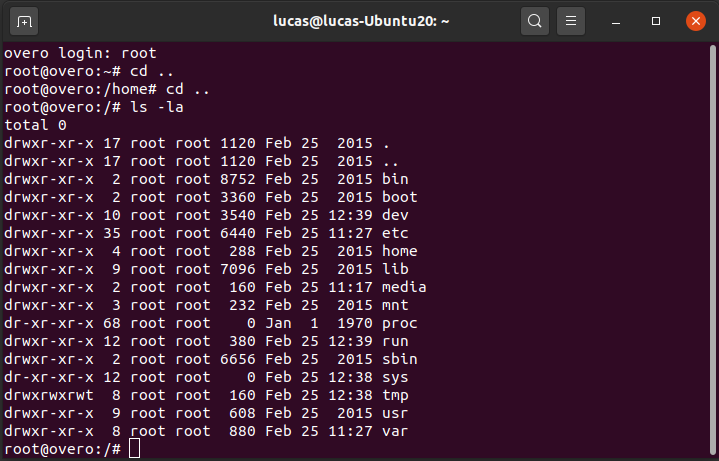
Of the various directories present in the figure, the directories “/bin”, “/boot”, “/dev”, “/lib” and “stand out/sys”.
The directory “/bin” is where the binaries of essential Linux commands are stored, such as the commands presented previously, so if it becomes necessary to add any more software to the microprocessor that is necessary, it must be added to this folder so that it can be found by the operating system when requested.
The directory “/boot” has already been used in this work and is the place where the bootloaders and other programs that are part of the system boot must be stored.
The “/dev” directory is the directory where system device files are stored. Device file is a way that the Linux system uses to generate a communication interface with device drivers. It will be used a lot later on during serial communication, for example.
The “/lib” directory is the directory that contains the essential libraries for the binaries contained in the “/bin” directory, so if new software installation is necessary, we will probably also need to add some library to this directory.
Finally, the “/sys” directory is the directory that contains device and driver information. This folder will be used a lot if it is necessary to use functions such as General Purpose Input/Output (GPIO), I2C and Direct Memory Access (DMA).
References
- PITA, H. C. Desenvolvimento de sistema de comunicação multiplataforma para veículos aéreos de asa fixa. Faculdade de Tecnologia, Universidade de Brasília, 2018.
- Linux man pages online - man7.org
- 30 Comandos Linux Que Todo Usuário Deve Conhecer - hostinger.com.br